 Gesture Remote
Gesture Remote
Control presentations and media with hand gestures
Stand your phone in front of you, show your palm to unlock control and swipe your hand to change slides. No need to touch the phone or the computer.
The camera feed is analyzed on the phone: no image is stored or leaves it.
Free · Android 9 or later · front camera · All versions
How it works
Four steps. Control starts locked, so a casual movement never changes a slide.
-
Place the phone
In front of you, next to the computer or on a tripod, with the front camera facing you.
-
Unlock with your palm
Hold your open palm still for one second. The phone vibrates and is ready.
-
Swipe your hand
To your right moves forward, to your left goes back. Each gesture sends a key to the computer.
-
Lock when you are done
Lower your hand and show your palm still for two seconds, or tap “Lock”. It also locks itself after a while without gestures.
Default gestures
Two ready-to-use profiles. You can change any gesture, action or key, duplicate profiles and share them as files.
| Gesture | Action | Key |
|---|---|---|
| Swipe right | Next slide | → |
| Swipe left | Previous slide | ← |
| Victory ✌ | Start presentation | F5 |
| Thumb down 👎 | End presentation | Esc |
| Fist ✊ | Black screen | B |
| Gesture | Action |
|---|---|
| Thumb up 👍 | Play / pause |
| Swipe right | Next track or video |
| Swipe left | Previous track or video |
| Hand up | Volume up |
| Hand down | Volume down |
| Fist ✊ | Mute |
The app interface is currently in Spanish.
What it does
Built for presenting with confidence: it reacts to deliberate gestures and ignores casual movement.
-
No accidental triggers
Palm unlock, hold-to-confirm, a pause between commands, and moving your hand back never counts as a gesture.
-
Practice mode
Rehearse gestures and see what is detected, with what confidence and why a movement was ignored, without controlling anything.
-
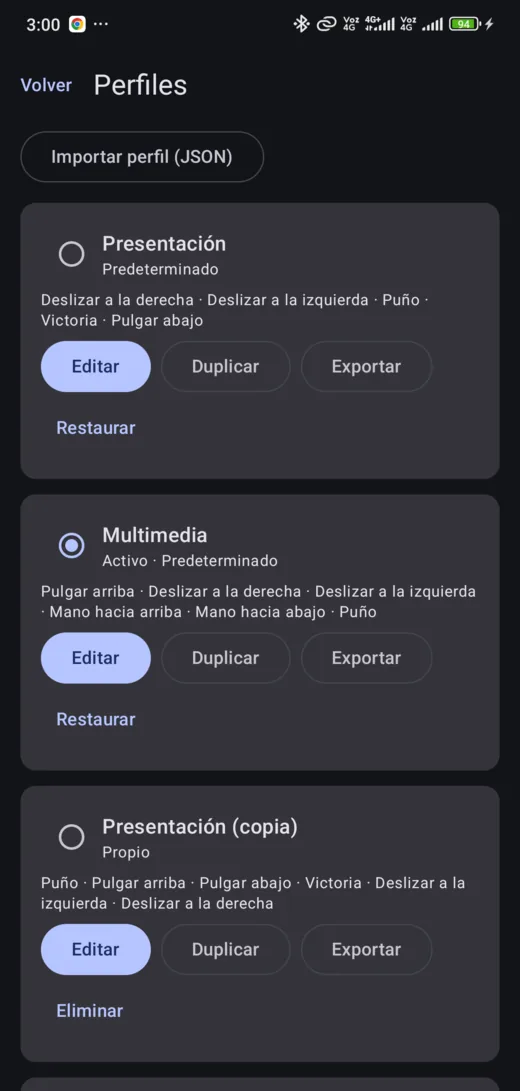
Profiles your way
Map each gesture to an action and a key, choose the hand and tune sensitivity. Export and import profiles as JSON.
-
Two ways to connect
As a Bluetooth keyboard, with nothing to install, or over WiFi with a small receiver for Linux, Windows and macOS.
-
Works offline
Hand tracking runs on the phone. No accounts, servers, ads or analytics.
-
History and diagnostics
Each session keeps only counters: actions, ignored gestures, frames per second and gesture-to-key latency.
Connect to your computer
Choose the output in the app, under Dispositivos (Devices).
Bluetooth keyboard
The phone shows up as a Bluetooth keyboard: pair it from your computer and you are done, with nothing to install.
Requires a phone that supports Bluetooth keyboard mode (the app checks it). On Linux, after restarting the phone’s Bluetooth you may need to remove and pair it again; for Linux we recommend the WiFi receiver.
Desktop receiver (WiFi)
A small program that receives gestures over your local network. The phone finds it automatically and pairs with a 6-digit code.
Instructions per system
Linux (Wayland or X11): a one-time setup to allow the virtual keyboard, then run it.
echo 'KERNEL=="uinput", SUBSYSTEM=="misc", TAG+="uaccess", OPTIONS+="static_node=uinput"' | \
  sudo tee /etc/udev/rules.d/60-gesture-receiver.rules
sudo udevadm control --reload-rules && sudo udevadm trigger --name-match=uinput
chmod +x gesture-receiver-linux-amd64 && ./gesture-receiver-linux-amd64
Windows: run the file and allow access on private networks when the firewall asks.
macOS: run it from Terminal and grant Accessibility permission. Media keys are not available on macOS.
It only accepts connections from your local network, keeps the list of authorized phones on your computer and never connects to any server.
Private by design
The camera looks at your hands, not at you: each frame is analyzed on the phone and discarded.
- No photos or video stored
- No image leaves the phone
- No face recognition
- No account or sign-up
- No ads or analytics
- No Internet servers
What it looks like
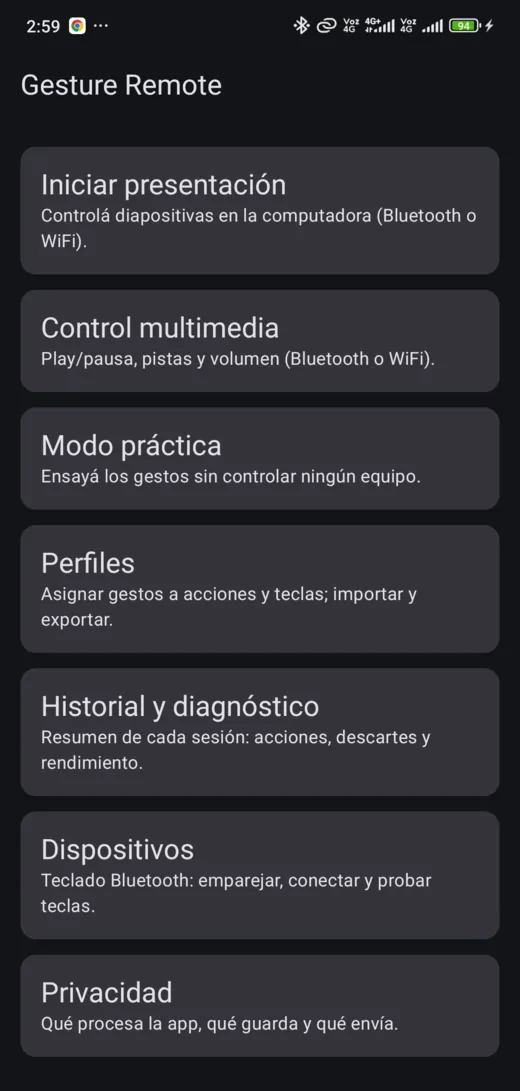
A screen to practice, another to control, and profiles you can edit.
-
Home -
Profiles -
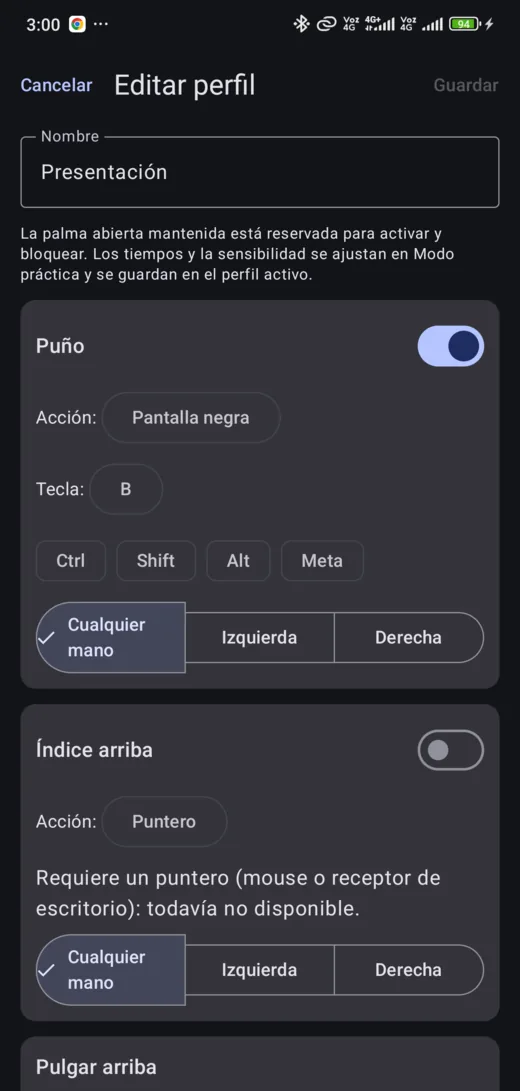
Gesture editor
How to install
Gesture Remote is coming soon to Google Play. In the meantime, install it from an APK file. It is free and needs no account.
- Download GestureRemote.apk on your Android phone.
- Open the file from the download notification or from the Downloads folder.
- If Android says it cannot install apps from that source, tap “Settings”, allow installs from your browser or file manager and go back.
- Tap “Install”, open Gesture Remote and start with Modo práctica (Practice mode).
Updates: download the new version and install it over the previous one. Your profiles are kept.
Play Protect notice: since the app is not installed from Google Play, Android may show a warning before installing it.
Contact
A question, a bug or an idea? Write to feedback@fab-apps.com.